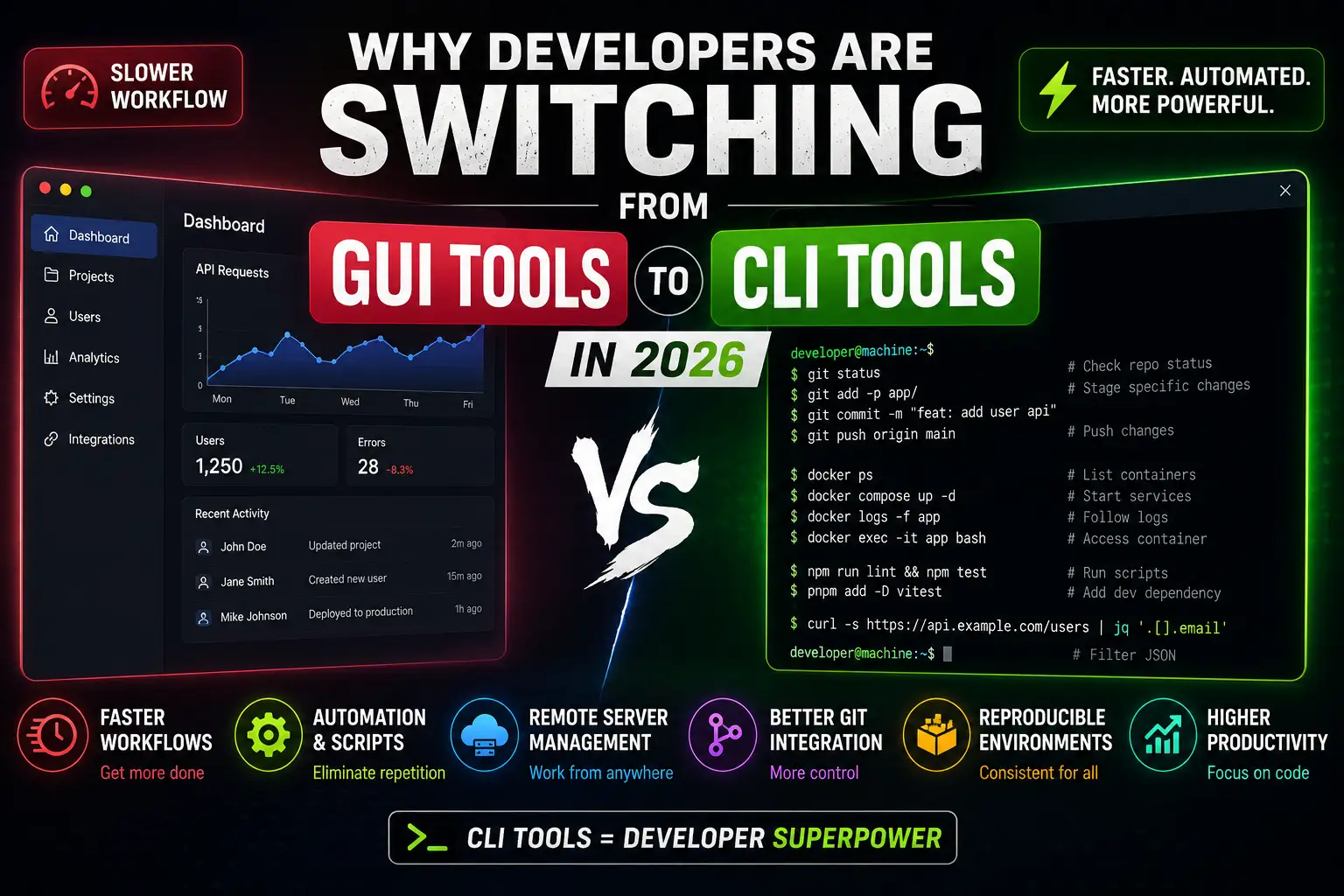
Why Developers Are Switching From GUI Tools to CLI Tools in 2026
Something noticeable has been happening across engineering teams in recent years. Developers who spent years clicking through GitHub Desktop, dragging files in FileZilla, and managing containers through Docker Desktop have been quietly abandoning those interfaces — not because they stopped working, but because the terminal turned out to be faster, more powerful, and better integrated with the rest of the development workflow. This isn't nostalgia for older tools. It's driven by practical outcomes: less friction, better automation, and workflows that scale from a local machine to a CI/CD pipeline without a configuration change.
What Is the Difference Between GUI and CLI Tools?
A graphical user interface (GUI) presents controls visually — buttons, menus, and panels you navigate with a mouse. A command-line interface (CLI) accepts typed commands and returns text output. The practical difference is in the interaction model: GUI tools are designed to be discovered; CLI tools are designed to be composed. You can chain CLI commands together, pipe their output into other commands, and run them in automated environments without any human present. GUI tools generally cannot do any of those things.
Why Developers Are Moving Toward CLI Workflows
The shift is driven by a combination of practical advantages that compound as development workflows grow more complex: the rise of DevOps and automation culture, the growth of remote server management, and the recognition that keyboard-driven workflows are faster for repetitive tasks.
Pro Tip: CLI tools become especially powerful when combined with shell aliases, history search, scripting, and automation. A developer who learns to compose commands well multiplies the value of each individual tool.
Speed and Efficiency
The speed advantage of CLI is most visible in repetitive tasks. Renaming a batch of files, searching an entire codebase for a function name, or staging specific Git hunks — each involves multiple clicks in a GUI and a single composed command in a terminal.
# Search an entire Laravel codebase — milliseconds with ripgrep
rg "getUserById" app/

# Stage only specific changes in a file
git add -p app/Http/Controllers/UserController.php

# Batch rename files by pattern
for f in *.jpeg; do mv "$f" "${f/.jpeg/.jpg}"; done
The speed advantage compounds. Each task might save 5–10 seconds over a GUI equivalent. Across hundreds of such tasks per day, that's meaningful developer time recovered.
Automation and Scripting
This is where GUI tools cannot compete. A GUI tool requires a human. A CLI tool can be called from a script, a Makefile, a GitHub Actions workflow, or a cron job. Any workflow that needs to run automatically must ultimately be expressible as commands.
#!/bin/bash
php artisan test
npm run build
rsync -avz --exclude='.git' ./ user@server:/var/www/app/
ssh user@server "cd /var/www/app && php artisan migrate --force"
This script runs locally, in a pre-commit hook, or in CI/CD without changes. A GUI equivalent does not exist.
Keyboard-Driven Workflows
Every mouse reach breaks a flow state. Developers who commit to keyboard-driven workflows — CLI tools, keyboard-shortcut-heavy editors, terminal multiplexers like tmux — report fewer interruptions to focused work. Reducing physical context switching (keyboard to mouse) is one part of the developer focus problem that CLI tools solve completely.
Remote Server Management
Once a developer needs to manage a remote server — a Linux production instance, a cloud VM, a container host — there is no meaningful GUI option. SSH gives you a terminal. That terminal runs CLI tools. Developers who have only used GUI tools for local development encounter a hard wall the first time they need to debug a production deployment, restart a service, read a log file, or check system resource usage remotely.
# Connecting to a remote server and checking resource usage
ssh user@your-server.com

# Check running processes and resource usage
btop

# Read and follow an application log
tail -f /var/log/nginx/error.log | grep "upstream timed out"

# Check disk usage
dust /var/www
Important Note: Proficiency with CLI tools for remote management is not optional for any developer who deploys to production. The earlier in a career this skill is developed, the more time it saves and the fewer emergency production incidents turn into multi-hour debugging sessions.
Git and Version Control
Git was designed as a CLI tool. Its graphical clients — GitHub Desktop, Sourcetree, Tower — are wrappers that expose a subset of Git's functionality in a visual format. That subset is sufficient for common operations, but advanced Git workflows — interactive rebasing, cherry-picking, bisecting, reflog recovery, stash management with multiple named stashes — require the CLI or produce dramatically better results there.
# Interactive rebase to clean up the last 3 commits before pushing
git rebase -i HEAD~3

# Recover a commit after an accidental git reset --hard
git reflog
git reset --hard HEAD@{3}

# Cherry-pick a specific fix from a release branch
git cherry-pick abc1234
Tools like lazygit bridge the gap — a terminal UI for Git that provides visual feedback while keeping the underlying tool's full power accessible. It represents the best of both approaches rather than a compromise between them.
Docker and Containers
Docker Desktop is a useful entry point for developers new to containerization, but its resource overhead — significant memory usage on both macOS and Windows, plus the licensing changes that made it paid for larger organizations — has driven many teams to the Docker CLI directly. The CLI workflow for containers is also more composable and scriptable.
# Start a development environment using Docker CLI
docker compose up -d

# Check running containers and resource usage
docker stats

# Tail logs from a specific service
docker compose logs -f app

# Execute a command inside a running container
docker exec -it myapp_php php artisan migrate
Best Practice: Keep docker-compose.yml commands as the entry point for a project's container workflow so any team member — or a CI pipeline — can bring up the full environment with a single command regardless of which machine they're on.
Package Managers
Modern web development is built on package managers, and package managers are inherently CLI tools. npm, pnpm, yarn, bun, Composer, pip, and cargo all operate through the terminal. There are GUI wrappers, but none of them are used widely in professional environments because the CLI versions are faster and more scriptable. A package.json file with defined scripts means every team member runs identical commands regardless of their setup.
# Install dependencies in a Node.js project
pnpm install

# Install a Laravel package
composer require laravel/sanctum

# Run a defined package script
npm run lint && npm run test

# Add a development dependency and update lock file
pnpm add --save-dev vitest
API Development
Postman established the GUI-based API testing workflow, but the category has shifted. Tools like httpie and xh provide readable, syntax-highlighted HTTP output in the terminal, and curl remains the lowest-common-denominator tool that runs everywhere without installation. For simple API checks during development, a terminal command is often faster than opening a GUI application and navigating to the right collection.
# Send a GET request with httpie
http GET https://api.example.com/users Authorization:"Bearer $TOKEN"

# POST with JSON body
http POST https://api.example.com/orders product_id=42 quantity=3

# Pipe JSON response through jq for filtering
curl -s https://api.example.com/users | jq '.[].email'
DevOps and CI/CD
CI/CD pipelines have no user interface at execution time. GitHub Actions, GitLab CI, Jenkins, and CircleCI run shell commands. Developers who have invested in CLI skills find that their local workflow and their CI workflow are expressions of the same commands. Developers who have relied exclusively on GUI tools discover that the pipeline is a foreign environment they don't know how to debug, because they've never interacted with their tools non-graphically.
Reproducibility
A CLI command can be written down exactly and executed identically by anyone. A GUI workflow cannot. When a process is documented as shell commands, any colleague — or the same developer six months later — can reproduce it exactly. When documented as screenshots pointing to menu items, it breaks the moment the UI changes and cannot be scripted under any circumstances. This distinction matters in regulated environments, onboarding documentation, and incident runbooks.
Resource Usage
GUI tools carry overhead. Electron-based applications in particular maintain a full Chromium rendering engine alongside the application logic. On machines with limited RAM, or in environments where many tools need to run simultaneously, this overhead matters. Most CLI tools are lightweight binaries that start in milliseconds and consume a fraction of the memory of their GUI equivalents.
| Task | GUI Tool | Typical Memory | CLI Tool | Typical Memory |
|---|---|---|---|---|
| Git management | GitHub Desktop | 250–500MB | git + lazygit | 20–50MB |
| Container management | Docker Desktop | 500MB–1.5GB | Docker CLI | <10MB overhead |
| API testing | Postman | 200–400MB | httpie / curl | <5MB |
| System monitoring | Activity Monitor / Task Manager | 30–80MB | btop | <20MB |
Why GUI Tools Still Have Advantages
CLI tools are not universally superior. GUI tools genuinely excel at:
- Visual design and image editing — there is no CLI equivalent of Figma or Photoshop for complex visual work
- Database exploration — browsing an unfamiliar schema, understanding relationships, and running ad-hoc analytical queries is often faster with a tool like TablePlus or DBeaver
- Non-developer stakeholders — project management tools, documentation platforms, and testing tools designed for non-technical users need accessible interfaces
- Complex data visualization — charts, dashboards, and graph-based interfaces for monitoring are inherently visual
- Onboarding new developers — the initial learning curve for CLI tools is steeper and a GUI can reduce friction during the first weeks on a project
Best CLI Tools Developers Should Know in 2026
The ecosystem of modern CLI tools is substantially better than it was five years ago. The following cover the most common developer needs:
- bat — syntax-highlighted cat replacement
- eza — modern ls with Git status and icons
- ripgrep (rg) — fast recursive code search respecting .gitignore
- fd — intuitive find replacement
- fzf — fuzzy finder that integrates with history, files, and any list output
- lazygit — terminal UI for Git with hunk-level staging
- btop — rich system monitor with mouse support
- jq — command-line JSON processor essential for API work
- httpie / xh — human-readable HTTP clients for API testing
- starship — fast cross-shell prompt with context-aware information
- zoxide — smarter directory navigation that learns usage patterns
- atuin — searchable, encrypted shell history synced across machines
How to Gradually Switch From GUI to CLI
- Start with Git. Learn the five most common commands —
status,add,commit,push,pull— before touching a GUI client. Add one new command per week. - Replace one tool at a time. Swap GitHub Desktop for the Git CLI first, then Docker Desktop, then your REST client.
- Learn shell aliases. Aliasing
lstoeza -la --gitorcattobatis a five-minute change that delivers immediate value. - Use
tldrfor quick reference.tldr git rebasereturns practical examples instantly, removing friction from learning unfamiliar commands. - Automate one small thing. Write one script that replaces a manual daily task. Seeing automation work builds the habit.
Key Takeaway: The goal is not to eliminate GUI tools. It is to reach the point where CLI is your default and GUI tools are a deliberate choice — not a habit driven by unfamiliarity with the alternative.
Frequently Asked Questions
Do I need Bash scripting knowledge to benefit from CLI tools?
No. Basic terminal usage — running commands, navigating directories, using pipes — requires no scripting knowledge. Bash scripting becomes valuable once you're comfortable with individual commands, not before.
Are CLI tools available on Windows?
Yes. WSL2 provides a full Linux environment on Windows with access to the entire Linux CLI ecosystem. Most tools on this list also have native Windows binaries via winget, Scoop, or Chocolatey.
Which is better for beginners — GUI or CLI?
GUI tools have a lower initial curve. Starting there is reasonable. But investing in CLI skills early avoids a significant plateau — many professional workflows, CI/CD systems, and remote environments are CLI-only.
Can CLI tools work in team environments?
Yes — and often better. Shared scripts and Makefiles give everyone identical commands regardless of machine setup. A make setup that works the same for every team member is more reliable than a GUI guide that breaks when the interface changes.
Final Verdict
The shift from GUI to CLI tools is a practical response to how software development has evolved. Automation, remote infrastructure, reproducibility, and CI/CD pipelines all favor CLI-native workflows. GUI tools remain valuable for visual design, complex data exploration, and non-technical stakeholder access. Everywhere else, the terminal is the better default.
Key Takeaways
- CLI tools are composable and scriptable — any task that needs to run automatically must ultimately be a CLI command.
- Remote server management, CI/CD pipelines, and production debugging all require CLI proficiency — GUI tools don't transfer to these environments.
- Modern tools like
ripgrep,bat,fzf, andlazygithave removed the rough edges that historically made terminal work unattractive. - Replace one GUI tool at a time, starting with Git, until the terminal becomes the default rather than the exception.
- CLI commands are reproducible — GUI workflows are not, making them a poor choice for team processes, onboarding, and incident runbooks.
References
- Git – Official Documentation (git-scm.com)
- Docker – CLI Reference Documentation
- npm – CLI Documentation
- Composer – Official Documentation
- Laravel Artisan – Official Documentation
- Node.js – Official Documentation
- Microsoft – Windows Subsystem for Linux (WSL) Documentation
- ripgrep – GitHub Repository
- fzf – GitHub Repository
- lazygit – GitHub Repository
- jq – Official Documentation
- HTTPie – CLI Documentation
- Starship – Official Documentation
- tldr pages – Official Site
- atuin – Official Site
Comments
0 comments
No comments yet
Start the discussion with a thoughtful note.