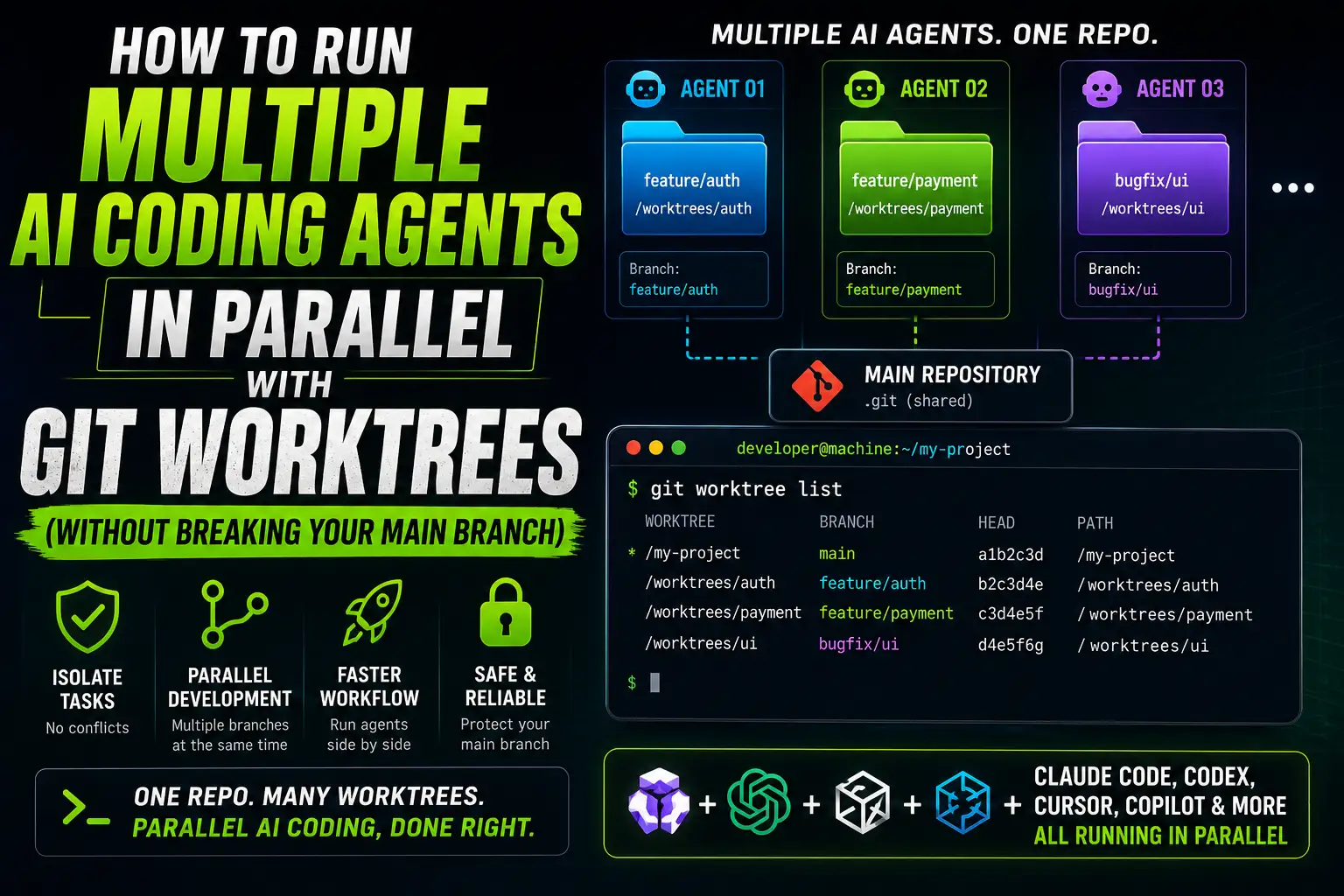
How to Run Multiple AI Coding Agents in Parallel with Git Worktrees (Without Breaking Your Main Branch)
If you've tried running more than one AI coding agent against the same project folder, you've probably already hit the problem: two agents editing the same files, uncommitted changes stepping on each other, and a working directory that no longer matches what either agent thinks it's looking at. This is one of the most common failure modes in AI-assisted development today, and it has a surprisingly old fix — Git worktrees.
A Git worktree lets you check out multiple branches from the same repository into separate folders at the same time. Instead of one working directory shared by every task, each AI coding agent gets its own isolated folder, its own branch, and its own uncommitted changes — while all of it still points back to a single shared Git history. That single idea is what makes parallel AI-assisted development workflows actually manageable in 2026.
This guide walks through what Git worktrees are, how they differ from branches and clones, and how to set up a practical workflow for running multiple coding agents — whether that's Claude Code, OpenAI Codex, Cursor, or GitHub Copilot's coding agent — side by side without putting your main branch at risk.
Why Running Multiple AI Coding Tasks in One Folder Can Go Wrong
A single working directory can only have one branch checked out at a time. When you point two AI agents at the same folder, you're really asking them to share one filesystem state. Common results include:
- One agent's file edits get overwritten by another agent's uncommitted changes.
- Switching branches mid-task discards or stashes work a different agent was relying on.
- Build artifacts, dependency folders, or environment files get mutated by more than one process at once.
- It becomes unclear which change belongs to which task when reviewing the diff.
Important: Never allow multiple AI agents to modify the same working directory at the same time if you want reliable isolation. Isolation has to happen at the filesystem level, not just at the branch level.
What Is a Git Worktree?
A Git worktree is an additional working directory linked to the same repository. Instead of cloning the project again, you create a second (or third, or fourth) checkout that shares the same .git history, objects, and remotes, but has its own working files and its own currently checked-out branch.
This is different from a full clone. A clone duplicates the entire repository, including its own copy of the object database. A worktree just adds another working directory on top of the repository you already have, which is faster to create and much lighter on disk.
git worktree listRunning this command shows every worktree currently attached to your repository, along with the branch each one has checked out. It's the fastest way to see what's active before you spin up a new AI coding task.
Git Worktree vs Git Branch
Branches and worktrees solve different problems. A branch is a pointer to a line of commits inside your Git history. A worktree is a physical folder on disk where a branch is checked out. You can have dozens of branches in a repository with only one worktree — but you can only have one branch checked out per worktree at a time.
| Aspect | Git Branch (single worktree) | Git Worktree |
| Parallel development | Requires switching branches, one task at a time | Multiple branches checked out simultaneously |
| Isolation | Shared working directory, no isolation | Separate working directory per branch |
| Switching tasks | git checkout or git switch, disrupts uncommitted work |
Just open a different folder, nothing disrupted |
| AI agent compatibility | Poor for concurrent agents | Well suited to concurrent agents |
| Developer productivity | Slower when juggling multiple in-progress tasks | Faster context switching between tasks |
Why Git Worktrees Are Useful for AI Coding Agents
AI coding agents work best when they have a clearly scoped, stable environment to operate in. A worktree gives each agent:
- A dedicated folder to read and write files without interference.
- A dedicated branch, so commits from one task never mix with another.
- A clean diff at review time, since every change in that worktree belongs to exactly one task.
- The ability to run its own dev server, test suite, or build process independently.
This matters more as multi-agent coding workflows become common. Running one AI agent per worktree turns what used to be a single, serial coding session into several isolated, reviewable units of work.
How Parallel AI Coding Workflows Work
The underlying idea is simple: one task, one branch, one worktree, one agent. Instead of prompting a single agent to "do three things," you split the work into three well-defined tasks, create a worktree and branch for each, and point a separate agent session at each folder. Each agent operates as if it had the whole repository to itself, because in practice, it does.
Setting Up Your First Git Worktree
Starting from a clean main branch, create a new branch and worktree together in one command:
git worktree add ../feature-auth -b feature/authThis creates a new folder called feature-auth next to your current project, checks out a new branch named feature/auth, and links it back to the same repository. Nothing in your main working directory changes.
You can repeat this for as many tasks as you need:
git worktree add ../feature-dashboard -b feature/dashboard
git worktree add ../bugfix-api -b bugfix/api
Each of these commands produces a fully separate working directory with its own checked-out branch, all sharing the same underlying repository history.
Running Multiple AI Coding Tasks Simultaneously
Once the worktrees exist, open each folder in its own terminal, editor window, or AI agent session:
project-auth/— point one agent session here for the authentication task.project-dashboard/— point a second agent session here for dashboard work.project-api/— point a third agent session here for the API fix.
Because each folder is a distinct working directory, an agent working in project-auth/ cannot accidentally touch files in project-dashboard/. Each session installs its own dependencies, runs its own dev server, and commits to its own branch.
Example: Three AI Agents Working on One Project
| Worktree | Branch | AI Task |
project/ |
main (protected) |
No direct edits — merge target only |
project-auth/ |
feature/auth |
Implement authentication |
project-dashboard/ |
feature/dashboard |
Build dashboard components |
project-api/ |
feature/api |
Fix API validation |
All three agents can run at the same time because each is confined to its own folder and branch. The exact AI tool used in each worktree can vary — one worktree might run Claude Code, another OpenAI Codex, another Cursor's agent mode, or GitHub Copilot's coding agent. Not every tool supports every workflow out of the box, so it's worth checking each tool's own documentation for how it handles working directories and background execution before relying on it for unattended, parallel tasks.
Naming Branches and Worktrees Properly
Consistent naming keeps parallel work manageable once you have more than two or three tasks running. A practical convention:
- Prefix branches by type:
feature/,bugfix/,chore/,refactor/. - Name the worktree folder after the branch's purpose, not a generic label like
temp1. - Keep worktree folders as siblings of the main project folder, so relative paths stay predictable.
Keeping Your Main Branch Protected
Pro tip: treat main as read-only for AI agents. No agent should ever check out or commit directly to it. Practical safeguards:
- Never let experimental AI work happen directly on main — a bad edit on main affects every worktree that later branches from it.
- Create a dedicated branch for every task, even small ones, so history stays traceable.
- Give every agent its own worktree instead of reusing one folder for multiple tasks.
- Review the diff before merging — worktrees make this easy since each branch's changes are isolated.
- Run tests before merging so a broken branch never lands on main.
- Use pull requests where appropriate, even for solo projects, to keep a review step in place.
- Keep commits focused so it's obvious which agent and which task produced which change.
- Avoid sharing mutable generated files (build output, caches) between agents — regenerate them per worktree instead.
- Be careful with environment files — copy or regenerate
.envfiles per worktree rather than symlinking a shared one that agents might overwrite. - Watch for port conflicts when multiple dev servers are running from different worktrees at once.
- Keep databases and external services isolated where a task involves migrations or destructive test data.
Managing Dependencies and Environment Files
Each worktree has its own working directory, which means dependency folders like node_modules or vendor are not automatically shared. In most setups you'll run npm install or composer install separately inside each worktree. This uses more disk space than a single shared folder, but it also means one agent's dependency changes can't silently break another agent's task. For environment files, copy a template .env.example into each new worktree and adjust ports and service URLs so multiple dev servers can run at once without colliding.
Running Tests Independently
Because each worktree is a full, independent checkout, you can run a test suite in one worktree while another agent is still mid-task in a different worktree — the test run only sees the files in its own folder. This is one of the more underrated benefits: you get continuous feedback on completed branches without pausing work in progress elsewhere.
Reviewing Changes Before Merging
Before merging any AI-generated branch, review the actual diff rather than trusting a task summary:
git diff main feature/authYou can also review the commit history for a branch to see how the agent approached the task step by step:
git log main..feature/auth --onelineMerging Completed AI Tasks Safely
Once a branch has been reviewed and tested, merge it from your main worktree:
git switch main
git merge feature/auth
If you prefer a linear history, a rebase before merging is an option, but be cautious rebasing branches that an AI agent may still be actively committing to in another worktree.
Removing Old Worktrees
Once a branch is merged, remove its worktree so it doesn't clutter your workspace:
git worktree remove ../feature-authIf a worktree's folder was deleted manually instead of through Git, clean up the leftover metadata with:
git worktree pruneCommon Git Worktree Mistakes
"Branch is already checked out"
Git won't let you check out the same branch in two worktrees at once. Create a new branch for the second worktree instead of reusing one that's already checked out elsewhere.
Worktree already exists
This happens when a folder with that name already exists, or a previous worktree wasn't removed cleanly. Run git worktree list to check, then remove or prune the stale entry.
Changes accidentally made in main
If an agent was mistakenly pointed at the main worktree, check git status immediately. Stash or commit the changes to a new branch rather than leaving them uncommitted on main.
Merge conflicts
These are resolved the same way as any Git merge conflict — worktrees don't change conflict resolution, only where the code physically lives while it's being worked on.
Dependency, port, or environment variable conflicts
Assign each worktree its own dependency install, its own port numbers in local config, and its own environment file values.
Database conflicts
If a task touches migrations or seed data, point each worktree at a separate local database or schema rather than sharing one.
Uncommitted changes when removing a worktree
Git will refuse to remove a worktree with uncommitted changes unless you force it. Commit, stash, or discard the changes first, or use git worktree remove --force only when you're certain the changes aren't needed.
Stale worktree metadata
Deleting a worktree folder manually (instead of with git worktree remove) leaves Git thinking the worktree still exists. git worktree prune clears this up.
When Worktrees Are Better Than Separate Clones
| Aspect | Git Worktree | Git Clone |
| Disk usage | Lower — shares one object database | Higher — duplicates the full repository |
| Setup time | Fast, near-instant | Slower for large repositories |
| Shared repository | Yes, same .git history and remotes |
No, independent repository copy |
| Branch isolation | Separate working directory per branch | Separate working directory per clone |
| Best use case | Multiple short-lived, related tasks on one project | Fully independent environments or different remotes |
Limitations and Situations Where Worktrees May Not Be Ideal
Worktrees aren't a universal fix. They still share the same repository configuration, hooks, and remotes, so they're not a substitute for true isolation when you need entirely separate CI credentials, submodule states, or Git configs. Very large monorepos with heavy build caches may also see diminishing returns if every worktree needs its own full dependency install. In those cases, separate clones or containerized environments may be a better fit than worktrees alone.
Recommended Workflow for AI-Assisted Development in 2026
- Start from a clean main branch.
- Create a branch for each task.
- Create a worktree for each branch.
- Open each worktree in a separate terminal, editor, or AI agent session.
- Give each AI agent one clearly defined task.
- Let agents work independently.
- Review each branch's diff.
- Run tests in each worktree.
- Fix conflicts if necessary before merging.
- Merge completed branches into main.
- Remove finished worktrees and prune stale metadata.
This structure scales from two agents to a handful without turning your Git history into a mess, because isolation happens by default rather than by discipline alone.
Frequently Asked Questions
What is a Git worktree?
A Git worktree is an additional working directory attached to an existing repository, allowing a different branch to be checked out and edited independently of your main working directory.
Can you use multiple Git worktrees at the same time?
Yes. A repository can have any number of worktrees active simultaneously, each with a different branch checked out, as long as no two worktrees share the same branch.
Can multiple AI agents use Git worktrees?
Yes. Assigning each AI agent its own worktree and branch is a practical way to let several agents work on the same repository at the same time without editing the same files.
Is a Git worktree better than cloning a repository?
For related, short-lived parallel tasks on the same project, worktrees are generally faster to set up and lighter on disk than full clones, since they share the same underlying repository data.
How do I create a Git worktree?
Run git worktree add <path> -b <branch-name> to create a new branch and worktree in one step, or omit -b to check out an existing branch into a new worktree.
Can two worktrees use the same branch?
No. Git prevents the same branch from being checked out in more than one worktree at a time to avoid conflicting edits to the same history.
How do I remove a Git worktree?
Use git worktree remove <path>. If the folder was deleted manually instead, run git worktree prune to clean up the leftover reference.
How do I run multiple coding agents at once?
Create a separate worktree and branch for each task, then point a separate AI agent session at each worktree folder so their file edits and commits never overlap.
How do Git worktrees prevent AI coding conflicts?
By giving each task its own working directory, worktrees stop agents from writing to the same files at the same time, even though every worktree still shares the same repository history.
Are Git worktrees safe for AI coding agents?
They're safe in the sense that they isolate working directories, but safety still depends on keeping agents off the main branch, reviewing diffs, and running tests before merging any branch.
Final Verdict
Git worktrees don't require learning a new tool or changing how your repository is structured — they use Git you already have. What they change is how safely you can run multiple AI coding agents at once: one task, one branch, one folder, one agent, reviewed and merged on your terms. For anyone running more than one coding agent against the same project, this is one of the simplest workflow changes that pays off immediately.
Key Takeaways
- Give every AI coding task its own Git worktree and branch instead of sharing one working directory.
- Worktrees share the same repository history but keep working files, uncommitted changes, and checked-out branches separate.
- Never let AI agents commit directly to main — always route work through a branch and worktree first.
- Review diffs and run tests in each worktree before merging.
- Remove and prune worktrees once their branch is merged to keep your workspace clean.
Comments
0 comments
No comments yet
Start the discussion with a thoughtful note.